


IQOS ILUMA I Problems & Solutions: Common Issues and How to Fix Them

Most IQOS ILUMA I problems come down to a few causes: a low or unseated battery, dirty charging contacts, a temperature limit, a locked device, a wrong stick, or a software glitch. Many of these can be handled with safe checks and, where IQOS supports it, a reset. Anything involving damage, heat or swelling needs official support.
This ILUMA I Problems & Solutions guide covers charging, blinking lights, heating, the touchscreen, battery life, Pause Mode, FlexPuff and resets across the IQOS ILUMA i devices. The steps depend on your model, because the ILUMA i One is built differently from the holder-and-pocket-charger models. Identify your symptom, try the checks below, and contact IQOS support if the problem persists.
Common ILUMA i Problems at a Glance
| Problem | Possible cause | First safe check |
| Not charging | Dirty ports or contacts, wrong adaptor or cable | Unplug, make sure ports are dry and clean, retry with a compatible adaptor and cable |
| Blinking lights | Low battery, temperature limit, device lock, software error | Identify the pattern, then check your model’s guide |
| Not heating or starting | Wrong stick, stick not seated, low battery, device locked | Confirm a TEREA stick is fully inserted, and the battery has charge |
| Touchscreen shows “0” | Holder is discharged | Return the holder to the pocket charger and let it charge |
| Pause Mode unavailable | Setting off, time limit passed, or Pause already used | Check the app settings and the pause icon on the screen |
| Battery drains fast | Battery mode, usage pattern, ageing | Check the battery mode in the IQOS App |
| Device unresponsive | Software glitch | Official reset for your model |
Which ILUMA i Do You Have? Why It Matters for Troubleshooting
ILUMA i, ILUMA i Prime and ILUMA i One do not share every feature. IQOS lists the ILUMA i and ILUMA i Prime as a holder plus pocket charger with a touchscreen, Pause Mode, FlexPuff and FlexBattery. The ILUMA i One is an all-in-one device.
That affects almost every fix. A pocket-charger reset does not apply to a One, and “touchscreen problems” cannot happen on a device without one. Work out which model you hold first, then follow the matching steps.
IQOS ILUMA i Not Charging
If your ILUMA i is not charging, start with the ports and contacts, because dirt or moisture is a common and easily checked cause.
For the ILUMA i One, IQOS’s guidance for lights that come on without charging is to unplug the device and make sure the charging ports on both the device and the cable are dry and clean. A full charge takes roughly 90 minutes with a compatible AC adaptor and cable, and four solid white lights show when it is done. A fully discharged device may take a few seconds before any light appears. If it still will not charge, IQOS suggests a reset (see the reset section).
For holder-and-pocket-charger models, the usual check is the connection between the two parts. IQOS advises making sure the pocket charger holds at least one experience’s worth of charge, cleaning the contacts between holder and charger, and seating the holder correctly. Contacts should be cleaned with a soft, dry cloth.
What to check:
- The cable and adaptor are compatible and undamaged.
- The port and contacts are dry and free of debris.
- The holder sits fully inside the pocket charger with the door closed.
Do not push tools into a port. Stop and contact support if charging keeps failing, or if the device is wet, damaged or unusually hot. Do not keep trying to charge a device in that state.
ILUMA i Blinking Lights: What They May Mean
Light meanings depend on the model and on what the device is doing, so there is no single colour chart that fits every ILUMA i. These patterns are confirmed in IQOS documentation:
- ILUMA i One, top and bottom lights flashing white on a button press: this indicates that Device Lock is active. You can switch it off in the IQOS App under device settings.
- Touchscreen shows “0” flashing three times (holder models): the holder is discharged and needs to go back into the pocket charger.
- Red light on the holder or pocket charger: IQOS’s ILUMA guidance says this can mean a malfunction or an interrupted or failed firmware update.
- Yellow light: on ILUMA pocket chargers, this means the battery is depleted.
- White lights blinking twice: on ILUMA devices, this signals that the device is outside its operating temperature range, listed as 0°C to 40°C.
The yellow, red and temperature entries come from pages for the ILUMA family. IQOS’s ILUMA i pages may word things differently, so confirm against your model’s guide. If a pattern is not in your guide, do not guess. Charge the device, let it reach room temperature, try the official reset, and contact support if it persists.
IQOS ILUMA i Not Heating or Not Starting
When an ILUMA i will not start a session, the cause is usually the stick, the battery, or the device state.
- Use the right stick. IQOS ILUMA is designed to be used only with TEREA sticks. HEETS are made for older IQOS generations and are not interchangeable with ILUMA i. IQOS also warns that TEREA sticks should not be used with previous IQOS generations, as this may damage the device.

- Seat the stick fully. The device is designed to stop if the stick is moved or removed during use.
- Check the battery. A depleted holder or pocket charger cannot start a session.
- Check Device Lock (ILUMA i One). The white flashing pattern above means the device is locked.
- Try the official reset for your model if the device seems frozen or behaves oddly.
Consider a damaged or damp stick as a possible cause too, but that is a general suggestion rather than an IQOS-listed step. If the device still will not heat after these checks, stop and contact support. Do not open the device or try to fix the heating system yourself.
ILUMA i Holder Not Working Properly
This section applies to the holder-and-pocket-charger models, not the ILUMA i One. If the holder lights do not come on after you swipe up, IQOS’s steps are:
- Check that the pocket charger has at least one solid white light.
- Clean the contacts between the holder and charger.
- Seat the holder correctly and leave it to charge until a holder light turns solid white.
- Remove the holder and short-press its button.
IQOS notes that a holder showing no lights may simply be off or depleted, and that a yellow holder light means no experiences are available. If a session ends unexpectedly, check the battery level and make sure the stick has not shifted. If the holder stays unresponsive after charging and a reset, treat it as a job for support.
IQOS ILUMA i Touchscreen Problems
Only the ILUMA i and ILUMA i Prime have a touchscreen. The ILUMA i One does not.
The most common official fix is simple: a flashing “0” means the holder needs charging. For a screen that stays frozen or unresponsive, IQOS describes resetting as a way to clear software glitches that cause slowdowns or malfunctions. Place the holder in the pocket charger and follow the reset steps below.
Also check your firmware. IQOS recommends updating firmware through its companion app if the device is out of date. If the screen stays unresponsive after charging, a reset and an update, contact IQOS support.
ILUMA i Battery Draining Quickly
A fast-draining battery is not always a fault. On models with FlexBattery, the mode you choose changes how many sessions you get.
In Performance Mode, IQOS describes two consecutive uses with one Pause available, or three consecutive uses without a pause. Eco Mode limits the holder to a single use, and Pause Mode is not available in Eco Mode. So if your holder suddenly gives fewer sessions, check which mode the IQOS App has set.
Other things worth checking:
- Whether the pocket charger itself has enough charge to top the holder up
- Whether the device has been left in very hot or cold conditions
- Whether the battery is simply ageing after heavy use (a general possibility, not a diagnosis)
Stop using the device and contact support if it overheats, swells, smells burnt or smokes. Never try to replace the battery yourself. IQOS’s manual states that users should not open, modify, service, disassemble or repair any component, or replace components or batteries.
ILUMA i Pause Mode or FlexPuff Not Working
Both features have rules that can look like faults, and on holder models they interact.
Pause Mode is available on the ILUMA i and ILUMA i Prime. IQOS says to confirm that Performance Mode and Pause Mode are enabled in the IQOS App. The screen shows two short vertical lines when pause is available. Pause can be used once, within the first 3 minutes or 8 puffs, by swiping down across the full length of the screen. To resume, swipe up across the full screen and wait for preheating. A pause lasts up to 8 minutes, after which the holder switches off. A swipe that does not cover the whole screen will not trigger it.
FlexPuff is not a guaranteed extra. IQOS explains that the device analyses your consumption and may activate FlexPuff, so it will not apply to every user or session. It grants 4 extra puffs within a 6-minute session, and it cannot activate if Pause was used. If FlexPuff never appears, that can be normal behaviour.
Does IQOS ILUMA i Need Cleaning?
Not in the way older IQOS devices did. ILUMA uses the SMARTCORE Induction System, which heats the stick by induction instead of a blade, so there is no blade to scrub.
What is supported is external care. Keep the charging ports and the holder-to-charger contacts dry and clean, using a soft, dry cloth for the contacts. IQOS also says that its stores offer device cleaning, software updates and technical support.
Do not insert sharp objects or cleaning tools into the device, and never pour liquids into it. Some third-party guides suggest cleaning sticks for ILUMA devices, but this is not confirmed in the official ILUMA i pages reviewed, so it is best avoided.
How to Reset IQOS ILUMA i Safely
A reset can clear software glitches, but it will not repair hardware faults, a damaged battery or a failed heating system. IQOS publishes two procedures.
ILUMA i and ILUMA i Prime (holder with pocket charger):
- Place the holder correctly inside the pocket charger.
- Press the ON/OFF button continuously for 10 seconds, until the strip lights fade out.
- The reset is confirmed when the lights fade in again, blink twice, and the device vibrates. It then turns on automatically.
ILUMA i One:
- Press and hold the ON/OFF button on the device for 10 continuous seconds.
- The reset is confirmed when the status lights fade in, blink twice quickly, ramp up and then show the current charge level.
If nothing happens, make sure the device is charged and the holder is seated. If it still does not respond, contact support.
ILUMA i One vs Prime vs Standard: Do Troubleshooting Steps Differ?
Yes, mainly between the One and the other two. The IQOS ILUMA i One is the compact all-in-one design. The IQOS ILUMA i Prime and the IQOS ILUMA i Standard (sold by IQOS simply as ILUMA i) use a separate holder and pocket charger. IQOS presents the Prime as the premium option in the range.
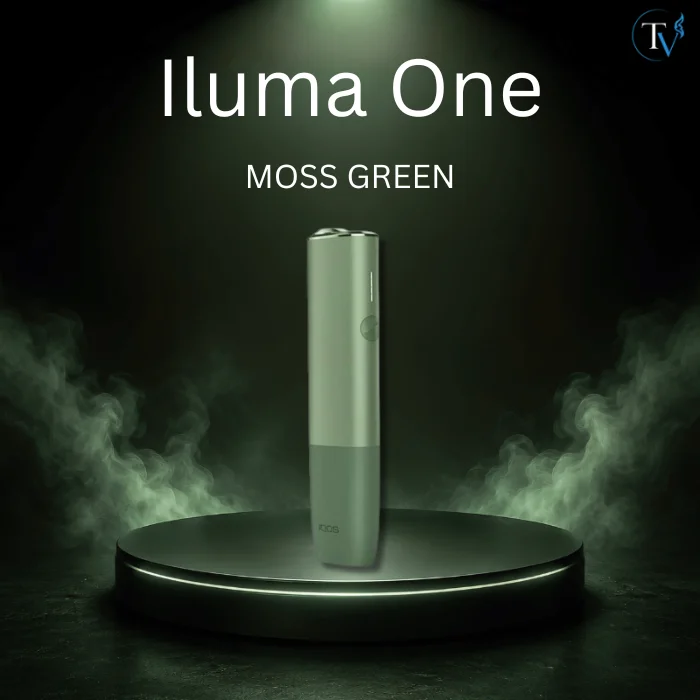
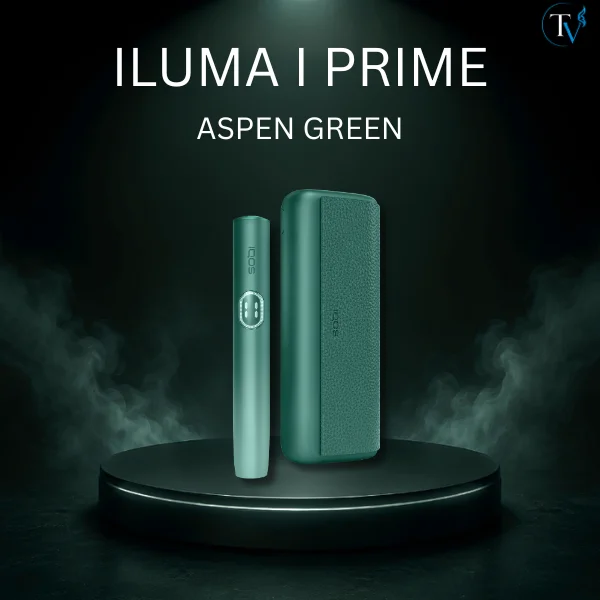
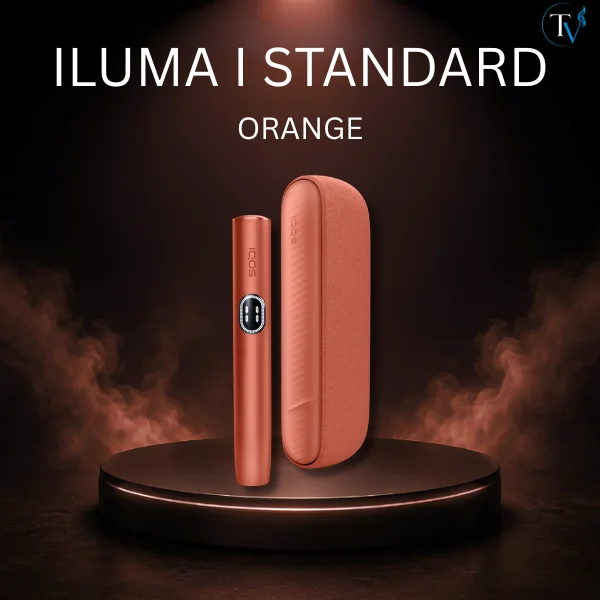
| ILUMA i One | ILUMA i Prime | ILUMA i (Standard) | |
| Design | All-in-one | Holder + pocket charger | Holder + pocket charger |
| Touchscreen | No | Yes | Yes |
| Pause Mode | No | Yes | Yes |
| FlexBattery | No | Yes | Yes |
| FlexPuff | Yes | Yes | Yes |
| Reset | Hold device button 10 sec | Holder in charger, hold button 10 sec | Holder in charger, hold button 10 sec |
| Model-specific note | Device Lock via IQOS App | “0” on screen means discharged | “0” on screen means discharged |
When Should You Stop Troubleshooting and Contact IQOS Support?
Stop and contact support when:
- Charging fails repeatedly after the checks above
- A red light or warning persists after the official reset
- The device is visibly cracked, dented or damaged
- It gets unusually hot
- The battery looks swollen, or you notice smoke or a burning smell
If the device shows damage or overheating, stop using it and disconnect it from power when it is safe to do so.
How to Prevent Common ILUMA i Problems
Good habits reduce the risk of problems, though they cannot guarantee a fault never happens.
- Charge with a compatible adaptor and cable, as described in your manual.
- Use only TEREA sticks and keep HEETS for older devices.
- Keep the device away from moisture and extreme heat or cold.
- Avoid drops and crushing.
- Keep the charging ports and contacts clean and dry.
- Update firmware through the IQOS App when prompted.
- Never open the device or attempt internal repairs.
Final Thoughts
Start by naming your model and the exact symptom. Then work through the safe checks: charge, clean the contacts, use the right stick, and run the official reset for your device. Never open the device or charge it if it is damaged or overheating.
If the problem persists after those steps, contact the official page for support. And if you need a replacement device or fresh sticks, buying from an Original Seller helps you avoid counterfeit parts that can cause compatibility problems.
FAQs
Why is my IQOS ILUMA i not working?
The most common causes are a low battery, dirty charging contacts, a locked device (ILUMA i One), a wrong or poorly seated stick, or a software glitch. Charge the device, clean the ports or contacts with a dry cloth, check the stick, and try the official reset for your model. If it still fails, contact IQOS support.
How do I reset my IQOS ILUMA i?
For holder models, place the holder in the pocket charger and hold the ON/OFF button for 10 seconds until the lights fade out. For the ILUMA i One, hold the device’s ON/OFF button for 10 seconds. A reset is confirmed when the lights come back and blink twice.
Why is my ILUMA i not charging?
Dirt or moisture in the ports or contacts is a frequent cause. Unplug, dry and clean them, and use a compatible adaptor and cable. If the lights stay on but nothing charges, IQOS suggests a reset. Stop if the device is damaged, wet or hot.
What does a blinking red light mean on ILUMA i?
IQOS’s ILUMA guidance links a red light to a malfunction or an interrupted firmware update, and recommends a reset first. Meanings can vary by model, so check your guide. If red persists after a reset, contact support.
Why is my ILUMA i not heating?
Check that you are using a TEREA stick, that it is fully inserted, and that the battery has charge. On the ILUMA i One, make sure Device Lock is off. Try the official reset. If it still will not heat, contact support.
Can I use HEETS with IQOS ILUMA i?
No. ILUMA i is designed for TEREA sticks only, and HEETS belong to older IQOS generations. IQOS also warns against using TEREA in older devices.
Does ILUMA i One have a touchscreen?
No. The touchscreen is on the ILUMA i and ILUMA i Prime. The ILUMA i One is a simpler all-in-one device without one.
Why does my ILUMA i keep turning off?
It may be normal behaviour. Sessions stop if the stick moves, a paused session ends after 8 minutes, and Eco Mode limits the holder to one session. If it shuts off with a full battery and a seated stick, try a reset and then contact support.