


How to Reset Your IQOS ILUMA i: 10-Second Troubleshooting Guide

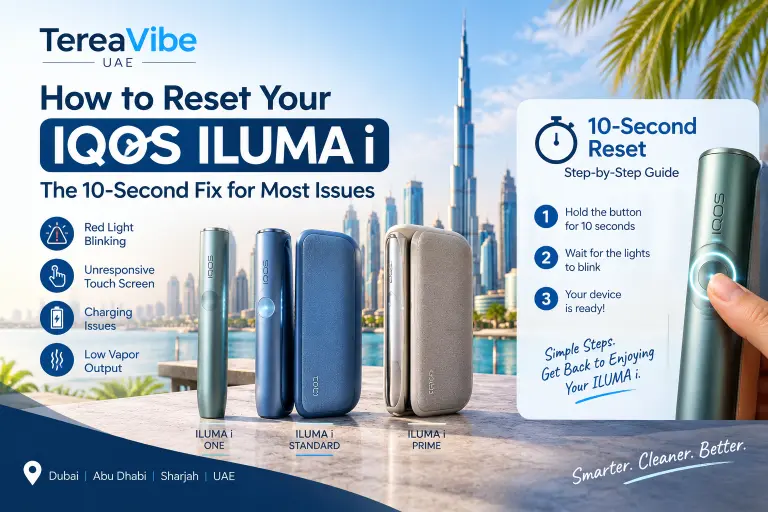
Is your IQOS ILUMA i unresponsive, showing a blinking red light, or experiencing charging problems? Before assuming that your device needs repair, a reset is a useful first troubleshooting step.
The IQOS ILUMA i series includes advanced features such as a touchscreen on selected models, battery indicators, and induction heating technology. Like other electronic devices, it may occasionally need a reset to address certain operating issues.
In this guide, TereaVibe.ae explains how to reset the IQOS ILUMA i ONE, IQOS ILUMA i Standard, and IQOS ILUMA i PRIME, how to recognize a successful reset, and what to check if the problem continues.
Whether you are in Dubai, Abu Dhabi, Sharjah, or another part of the UAE, these steps can help you identify the appropriate next action.
Why Reset Your IQOS ILUMA i?
A reset can help resolve certain temporary operating problems. However, it will not fix every battery, charging, temperature, or hardware issue.
Consider checking the reset procedure if you experience any of the following:
- Blinking red light: Your device displays a red indicator or an error signal.
- Unresponsive touchscreen: The screen on your ILUMA i Standard or PRIME does not respond as expected.
- Unexpected operating behavior: The device does not respond normally to its controls.
- AutoStart problems: The device does not begin a session as expected when using a compatible TEREA stick.
- Persistent operating issues: The device behaves abnormally despite following the usual operating instructions.
Before resetting, check the battery level, inspect the device for visible damage, and consult the user manual for your particular model.
How to Reset IQOS ILUMA i in 10 Seconds
The reset procedure depends on the model you own. The IQOS ILUMA i ONE is an all-in-one device, while the ILUMA i Standard and PRIME use a separate Holder and Pocket Charger.
1. How to Reset IQOS ILUMA i ONE
The IQOS ILUMA i ONE has a built-in holder and battery, so you can perform the reset directly on the device.
Follow these steps:
- Remove the TEREA stick if one is inserted.
- Locate the main button on your IQOS ILUMA i ONE.
- Press and hold the button continuously for approximately 10 seconds.
- Release the button and allow the device to complete the reset.
- Observe the status lights to confirm that the reset sequence has completed.
According to official IQOS troubleshooting instructions, the reset is confirmed when the status lights fade in, blink twice rapidly, and then indicate the device’s current charge level.
How do you know the reset worked?
Look for the confirmation light sequence described in the official instructions. Do not rely solely on a vibration or assume that the device is repaired if the original problem remains.
For model-specific product information, visit the IQOS ILUMA i ONE support page.
2. How to Reset IQOS ILUMA i Standard
The IQOS ILUMA i Standard includes a separate Holder and Pocket Charger. The reset is performed using the Pocket Charger button.
Follow these steps:
- Place the Holder inside the Pocket Charger.
- Ensure the Holder is seated correctly.
- Locate the Pocket Charger button.
- Press and hold the button for 10 seconds.
- Release the button and observe the status lights.
- Wait for the lights to turn off, blink twice, and turn on again to confirm the reset.
The reset procedure applies to the ILUMA i system with the Holder inside the Pocket Charger.
Does the Holder reset too?
The reset procedure is designed for the device system with the Holder placed inside the Pocket Charger. If the problem persists afterward, follow the official troubleshooting guidance for your model.
3. How to Reset IQOS ILUMA i PRIME
The IQOS ILUMA i PRIME follows the same basic reset procedure as the ILUMA i Standard.
Step-by-step instructions:
- Remove any TEREA stick from the Holder.
- Place the Holder inside the Pocket Charger.
- Press and hold the Pocket Charger button for 10 seconds.
- Release the button.
- Wait for the status lights to turn off, blink twice, and turn back on.
Once the reset sequence is complete, check whether the original issue has been resolved.
Important: Do not repeatedly reset the device if it continues to show an error. Persistent problems may require additional checks or assistance from IQOS support.
IQOS ILUMA i Reset Instructions at a Glance
| Device Model | Reset Method | Confirmation |
|---|---|---|
| IQOS ILUMA i ONE | Hold the device button for about 10 seconds | Status lights fade in, blink twice rapidly, and indicate charge level |
| IQOS ILUMA i Standard | Place Holder in Pocket Charger and hold its button for 10 seconds | Status lights turn off, blink twice, and turn on |
| IQOS ILUMA i PRIME | Place Holder in Pocket Charger and hold its button for 10 seconds | Status lights turn off, blink twice, and turn on |
Always check the instructions for your exact model if the light sequence differs.
How to Fix IQOS ILUMA i Touchscreen Problems
The touchscreen is a feature of selected ILUMA i models, including the Standard and PRIME. If it becomes unresponsive, try a few basic checks before assuming the screen is damaged.
Check the Device Status
First, confirm that the Holder and Pocket Charger have sufficient battery charge. A depleted battery can prevent normal operation.
Check the Touchscreen Instructions
Make sure you are using the screen controls described in your device manual. Different gestures may perform different functions, so avoid assuming that every action works the same way across all models.
Allow the Device to Reach a Suitable Temperature
The operating temperature range specified by IQOS for the ILUMA i is generally 0°C to 40°C. Extreme temperatures can affect normal operation.
If the device has been left in a hot car or exposed to direct sunlight, move it to a safe location at room temperature and allow it to return to its operating range.
Try the Reset Procedure
If the touchscreen remains unresponsive, perform the appropriate reset for your model.
If the screen still does not work afterward, stop troubleshooting and consult the official support service.
What Does a Blinking Red Light on IQOS ILUMA i Mean?
A blinking red light can indicate a device problem, but the exact meaning depends on the model and circumstances.
A reset is one recommended troubleshooting step for certain red-light errors. However, a red light does not always mean that a software issue is responsible.
If the red light continues after resetting:
- Check the battery and charging status.
- Review the official instructions for the specific indicator pattern.
- Make sure the device is within its recommended operating temperature range.
- Inspect the device for visible damage.
- Contact IQOS support if the error persists.
Do not open the device, attempt battery repairs, or dismantle the heating system yourself.
For additional guidance, consult the official IQOS ILUMA i ONE troubleshooting guide.
IQOS ILUMA i Charging Problems: What to Check
Sometimes, a device that appears frozen may simply have a depleted battery or a charging issue.
Check the Charging Cable and Port
Disconnect the device from the power supply before inspecting the charging connection. Make sure the cable and charging ports are dry and free from visible contamination.
Do not insert metal objects or wet cleaning tools into the charging port.
Use Compatible Charging Equipment
Follow the manufacturer’s charging recommendations for your specific model. Use a compatible power adapter and cable, and avoid charging a device that is visibly damaged.
Allow Sufficient Charging Time
A fully depleted battery may need time before charging indicators appear. Charging duration also varies by device model.
Refer to the official user guide rather than assuming that all ILUMA devices require the same charging time.
When Should You Stop?
If the device becomes unusually hot, smells abnormal, shows signs of battery damage, or repeatedly fails to charge, disconnect it if safe to do so and stop using it. Seek professional assistance.
How to Prevent Common IQOS ILUMA i Problems in the UAE
Dubai and other UAE cities can experience high temperatures, especially during summer. Appropriate storage and charging practices can help protect electronic devices from unnecessary stress.
1. Avoid Direct Sunlight
Do not leave your IQOS ILUMA i ONE, Standard, or PRIME on a dashboard or in a hot vehicle. Follow the manufacturer’s temperature and storage recommendations.
2. Keep Charging Connections Dry
Before charging, make sure the charging cable and ports are dry. If contamination is visible, follow the official cleaning instructions rather than using liquids or sharp objects.
3. Handle the Device Carefully
Avoid dropping the device or exposing it to excessive moisture. Damage to electronic components can cause operating problems that a reset will not resolve.
4. Follow the Correct Device Instructions
The ILUMA i ONE has a different physical design from the Standard and PRIME. Always use instructions intended for your specific model.
5. Do Not Attempt DIY Hardware Repairs
If the device continues to show errors, contact IQOS support or an appropriate service provider. Opening the device or attempting to repair its battery can create additional risks.
Frequently Asked Questions About Resetting IQOS ILUMA i
1. How long does it take to reset IQOS ILUMA i?
The button-hold step takes approximately 10 seconds for the ILUMA i Standard and PRIME. The ILUMA i ONE also has an official reset procedure involving a 10-second button hold. Allow additional time for the status lights to complete the confirmation sequence.
2. Will resetting IQOS ILUMA i delete my usage data?
A reset is intended to restart the device, but the official reset instructions do not establish that all usage information is preserved in every model or configuration. Check the manufacturer’s documentation if you are concerned about device settings or stored information.
3. Can I reset IQOS ILUMA i while charging?
Follow the manufacturer’s instructions for your model. If you suspect a charging fault, disconnect the device before inspecting its cable and ports. Do not charge a damaged or unusually hot device.
4. What if my IQOS ILUMA i still shows a red light after resetting?
Check the official troubleshooting instructions for your model. If the red light persists after the recommended reset, contact IQOS support rather than repeatedly resetting or attempting a hardware repair.
5. Why does my IQOS ILUMA i blink white twice?
On supported ILUMA models, two white flashes can indicate that the device is outside its operating temperature range. Check your model’s user guide to confirm the meaning of the specific indicator.
6. Can I use the same reset procedure for ILUMA i ONE and ILUMA i PRIME?
No. Although both procedures involve holding a button, the ILUMA i ONE is reset using its own device button, whereas the Standard and PRIME reset through the Pocket Charger with the Holder inserted.
7. Does resetting IQOS ILUMA i fix every problem?
No. A reset may resolve certain temporary operating issues, but it cannot repair physical damage, a faulty battery, or every charging problem.
Final Thoughts: Reset Your IQOS ILUMA i Correctly
Resetting your IQOS ILUMA i is a useful first troubleshooting step when the device becomes unresponsive or displays certain errors. The important thing is to follow the correct procedure for your model.
For the IQOS ILUMA i ONE, use the device button. For the IQOS ILUMA i Standard and PRIME, place the Holder inside the Pocket Charger and hold the charger button for 10 seconds.
If the problem continues after the reset, check the official troubleshooting instructions or contact IQOS support. Avoid assuming that every red light, charging fault, or touchscreen problem can be fixed with a reset.
For more device information and TEREA-related guides, visit TereaVibe.ae and explore the available resources.
IQOS ILUMA devices are designed for use with compatible TEREA tobacco sticks. TEREA contains tobacco and addictive nicotine. These products are not risk-free and are intended only for adults who use tobacco or nicotine products.